Barcode scanning & sales
Scan barcodes or tap product cards to sell. Open View Cart for the item breakdown, edit quantities, remove an item, or clear the cart before checkout.
 Z You Software Solutions
← All apps · Z You Software Solutions
 Z You POS
Scan products, complete sales, and keep your inventory in one Android app.
Downloaded from this website, installed on your phone. Read the Android installation notice before installing.
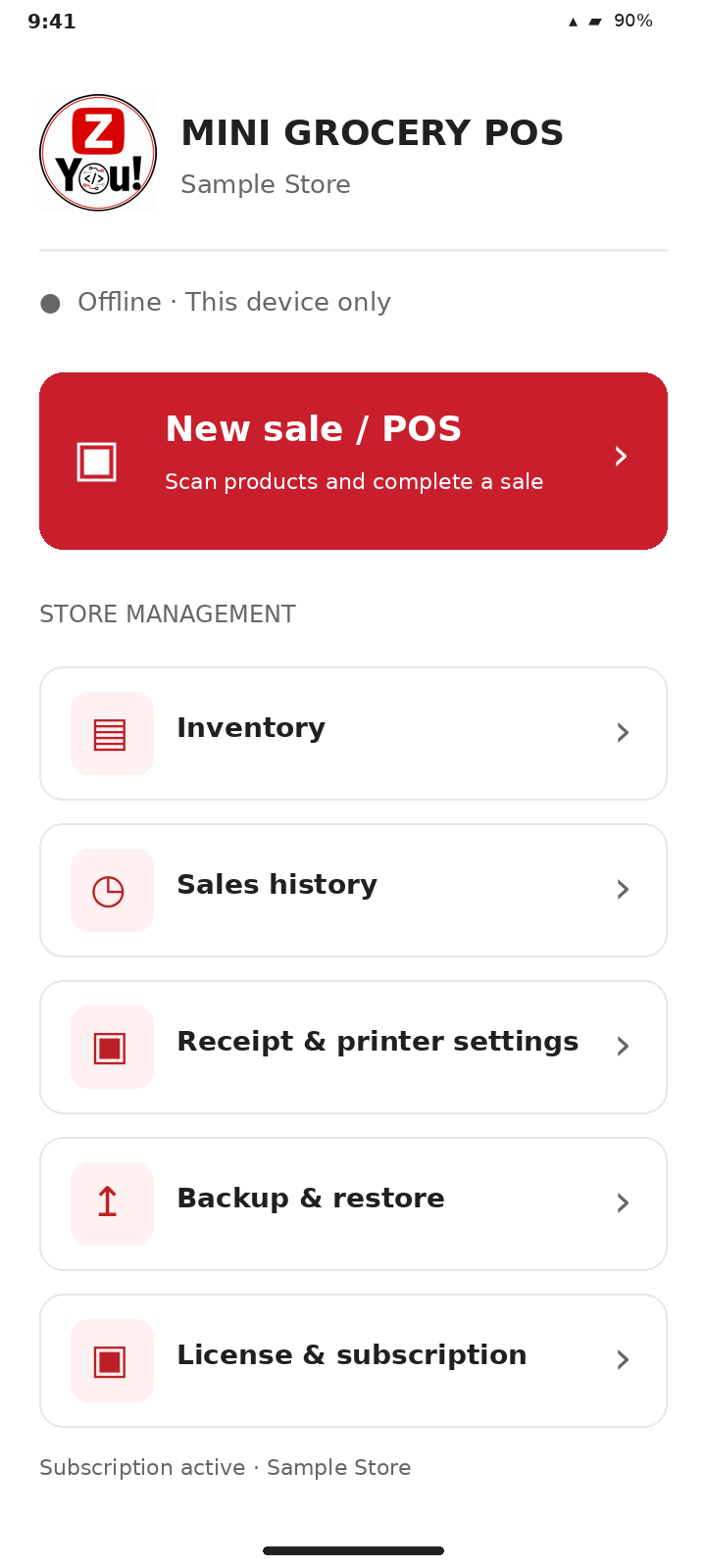
Sample interface based on v0.9.5. Demo store details and products.
Product photos, a two-column inventory grid, View Cart and Clear Cart, daily and monthly sales totals, receipt search, and backup sharing.
Scan barcodes or tap product cards to sell. Open View Cart for the item breakdown, edit quantities, remove an item, or clear the cart before checkout.
Browse products in a two-column photo grid. Search by name, brand, description or barcode, track stock and sold-today quantities, and remove products. Browse up to 50 products per page.
Check daily or monthly sales totals. Search receipts by number or date, open a receipt, and return to the sales-history list.
Print or share receipts, save or share full JSON backups, and export readable Word or PDF sales reports for a chosen date range.
Sample interfaces based on the v0.9.5 layout, using demo products and sales. Illustrative previews, not device captures. Tap a screen to view it in full.
Your starting point for sales and store management.
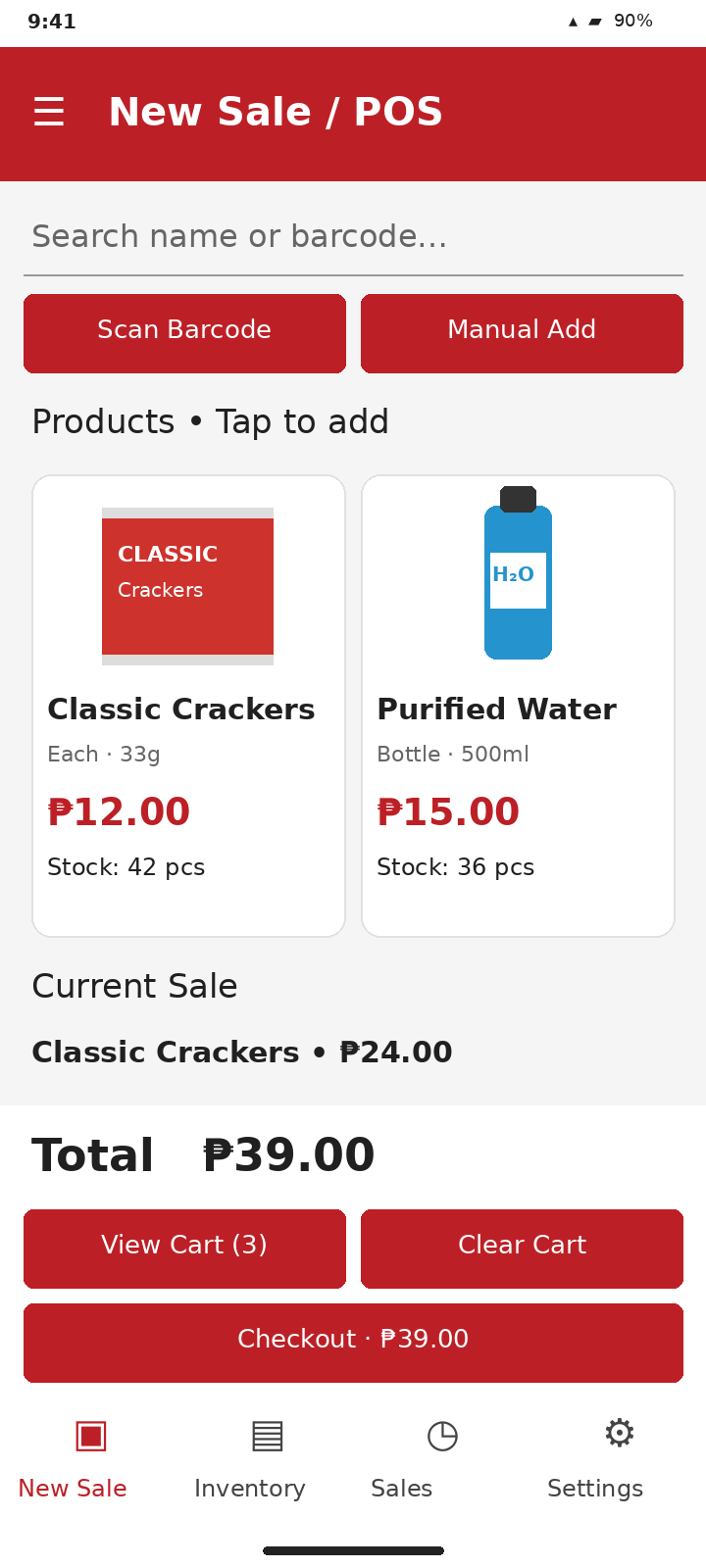
Product cards, View Cart, Clear Cart and checkout.
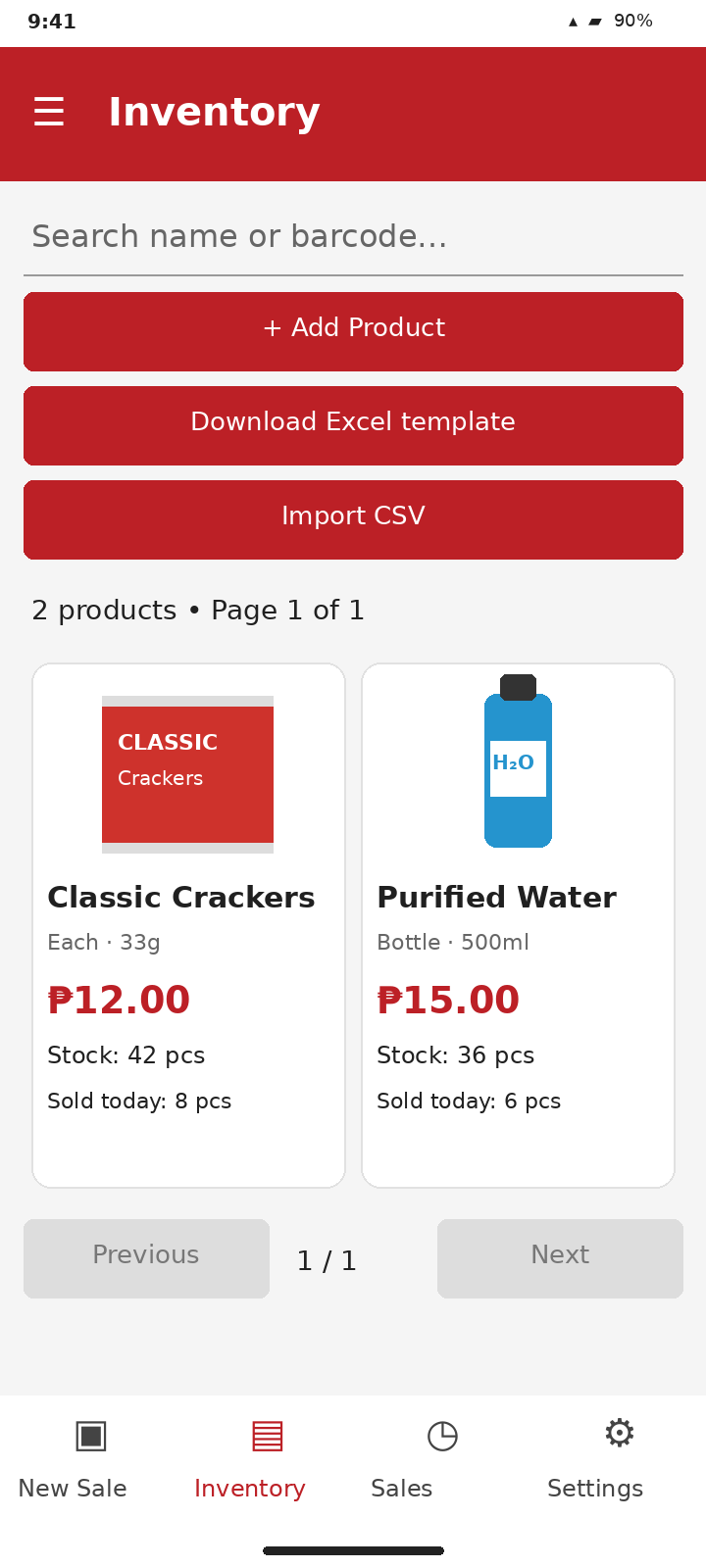
Product images, descriptions, prices and stock.
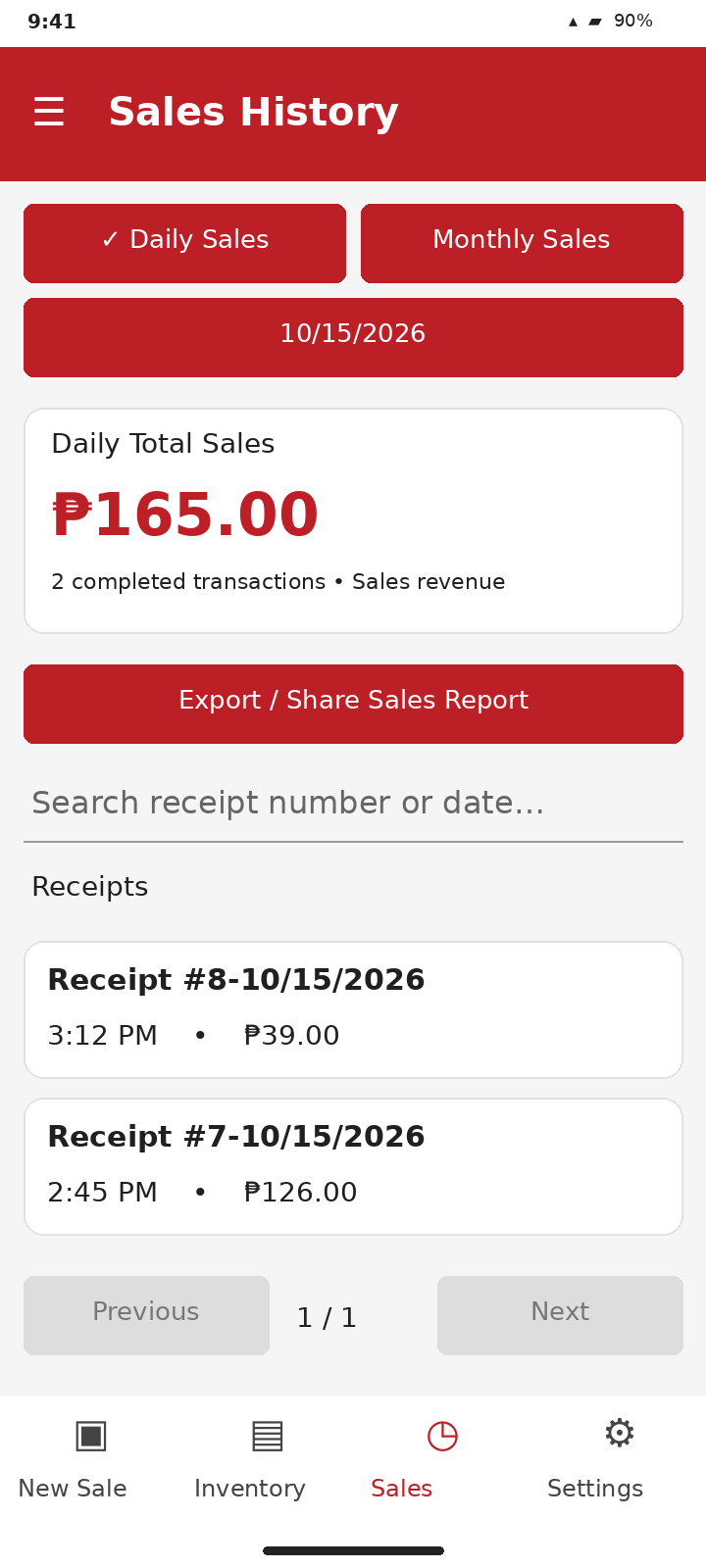
Daily and monthly sales, receipt search and report exports.
No payment needed to start the 7-day trial.
Explore the POS before choosing a paid plan.
A flexible option for your everyday store operations.
Save ₱600 compared with 12 monthly payments.
Contact support for manual subscription activation on your device. Online payment availability depends on the payment setup shown in the app. These plans do not automatically deduct money every month or year.
On your Android phone, tap Download Z You POS, then Start download. When ready, tap Save APK. Open the downloaded Z-You-POS-v0.9.5.apk file.
If Android blocks installation from your browser, open the settings shown in the prompt and allow Install unknown apps / Allow from this source for that browser. Labels vary by phone.
Follow your phone's installation prompts. Allow camera access when you want to scan barcodes. You can turn the browser's installation permission off again afterward.
Connect to the internet, open License & subscription, and tap Start 7-day trial. Then set up your store and products.
This APK is distributed through a website, outside Google Play. Android may ask you to allow installation from the browser, and Play Protect may ask to scan an unfamiliar app.
A harmful-app warning is different. If your phone identifies the app as harmful or blocks it for a security issue, stop and contact support with the exact warning. Keep Play Protect enabled. Do not bypass a harmful-app warning.
Read Google's Play Protect guidanceBack up your store data first, then install this update over the existing compatible version. Do not uninstall your current app to force an update: uninstalling can remove local store data. If Android rejects the update, contact support.
Android 7.0 or later, storage for the app and your store data, and internet for trial activation and license checks. Camera access is used for scanning. A receipt printer is optional.
Expected filename: Z-You-POS-v0.9.5.apk. Version: 0.9.5. Package: com.zyou.minigrocery.
SHA-256 checksum
bb45a91b5fc370d938dd71cf514dfc656d162224a058016338aaf82f9314b9f0Sundan ito mula pag-set up ng tindahan hanggang sa unang benta. Tapikin ang larawan para makita nang buo. Sample interface previews ang Home, POS, at Inventory. Ang scanner, receipt, at printer reference images ay mula sa naunang version.
Kumonekta sa internet. Buksan ang License & subscription at tapikin ang Start 7-day trial. Kapag active na, bumalik sa home menu.
Phone camera ang scanner at sa phone naka-save ang store records. Walang kailangang PC na data server. Kailangan pa rin ng internet para sa activation at pana-panahong license checks.
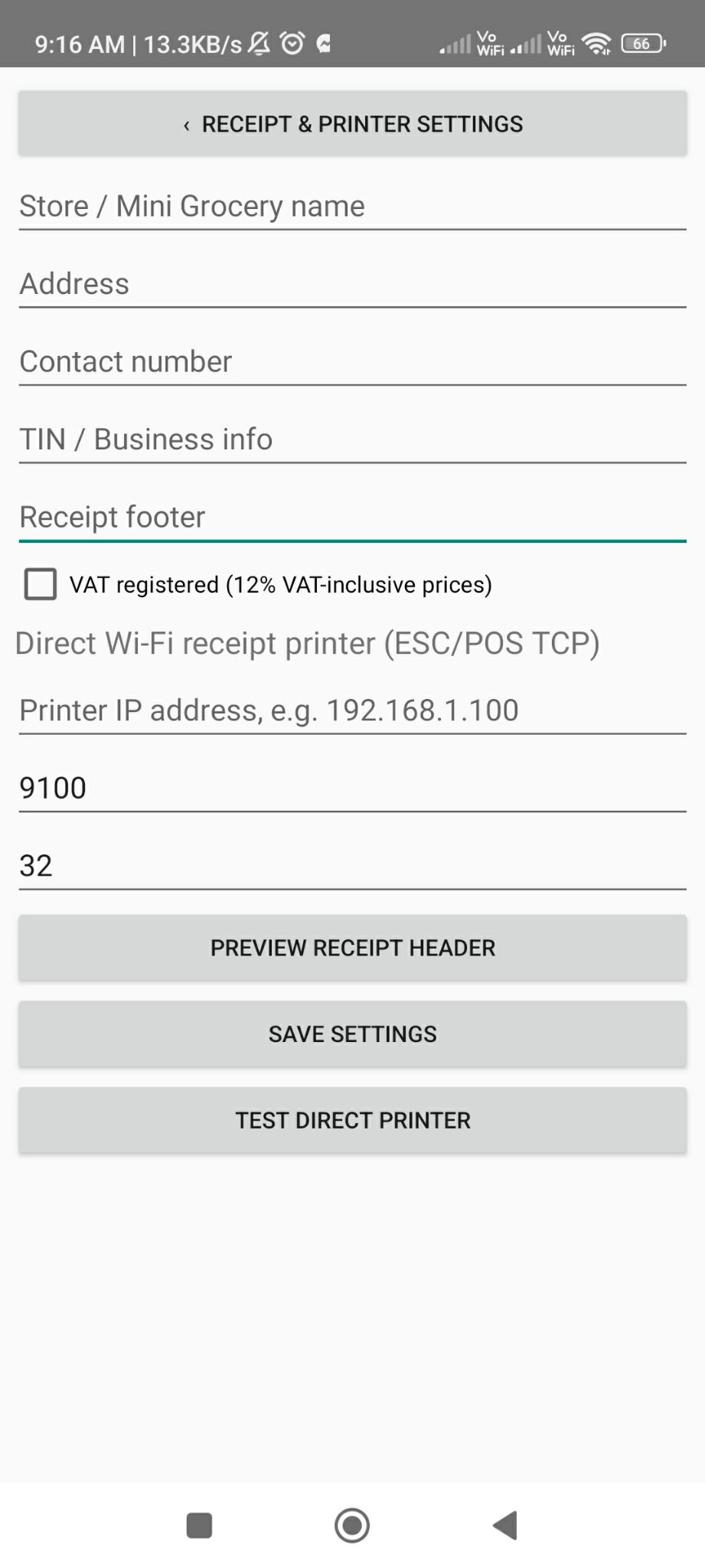
Buksan ang Receipt & Printer Settings. Ilagay ang store name, address, contact number, at receipt footer. Tapikin ang Save settings.
Optional ang printer. Piliin lang ang VAT registered setting kung VAT-registered talaga ang negosyo mo.
Buksan ang Inventory → Add product. Ilagay ang Barcode, Product name, Selling price, Cost price, Current stock, at Low stock alert at. Piliin ang angkop na tax classification, panatilihing naka-check ang Active, at tapikin ang Save product.
I-type ang barcode number na nasa packaging, kasama ang anumang zero sa unahan. Para sa walang barcode, magtalaga ng sariling unique product code at gamitin ang manual search sa pagbenta.
Sa Inventory, tapikin ang Download Excel template. Punan ang Products sheet gamit ang spreadsheet app, pagkatapos i-save bilang CSV UTF-8. Bumalik sa Inventory, tapikin ang Import CSV, at piliin ang CSV file. Panatilihing text ang barcode column para hindi mawala ang leading zeros. Mag-backup bago mag-import sa existing inventory at i-check ang prices at stock pagkatapos.
Buksan ang New Sale / POS → Open Barcode Scanner. Payagan ang camera access at itutok sa barcode ng product na na-register mo sa Inventory. Tingnan ang cart para makumpirma ang item at quantity.
Kung Unknown barcode ang lumabas gaya sa sample screenshot, nakita ang barcode pero wala pa ang katumbas na product sa inventory. Idagdag muna ito. Pwede ring mag-search ng pangalan o barcode sa POS at tapikin ang product card.
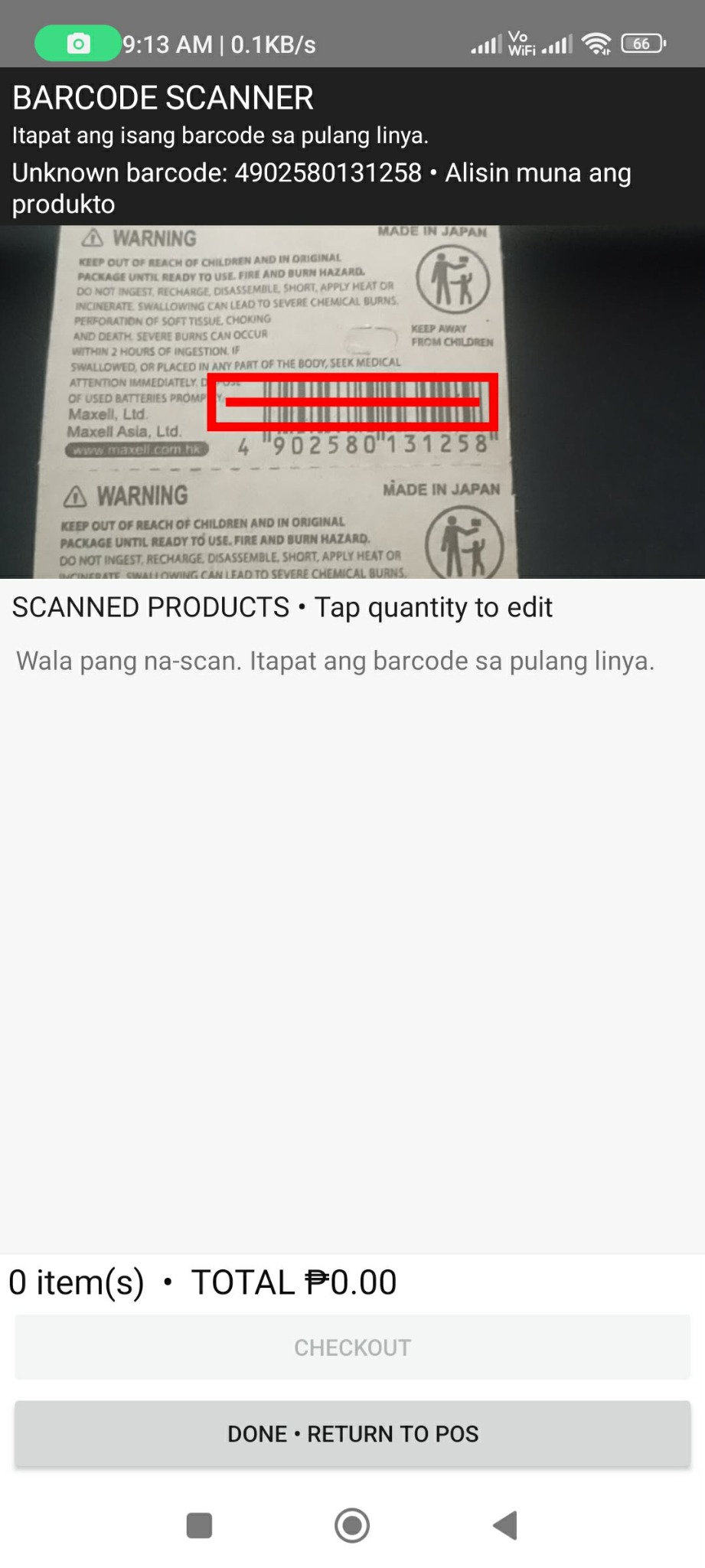
Tapikin ang View Cart para makita ang breakdown, baguhin ang quantity, o alisin ang item. Gamitin ang Clear Cart kung kinansela ang buong purchase. I-check ang items at total bago mag-checkout. Sa scanner, may +, −, at Qty controls.
Tapikin ang Checkout, ilagay ang natanggap na cash sa Cash received in pesos, at tapikin ang Complete sale. Awtomatikong ire-record ang sale at ibabawas ang nabentang quantity sa stock.
Halimbawa: total ₱100 at cash ₱150 → sukli ₱50. Kung kulang ang stock o bayad, ayusin muna bago kumpletuhin ang sale.
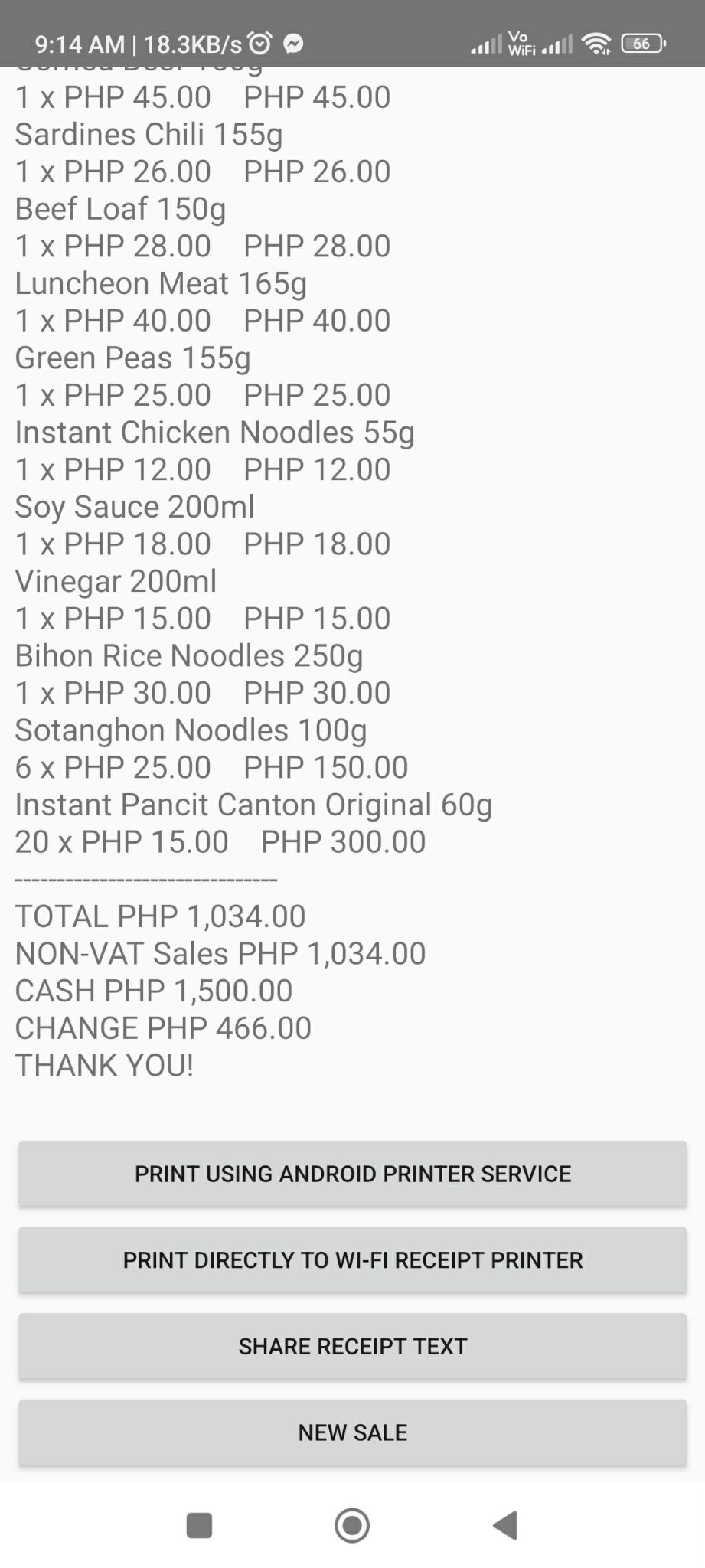
Pagkatapos ng sale, lalabas ang receipt at sukli. Tapikin ang Share receipt text kung gusto mong ipadala ang resibo. Tapikin ang New Sale para sa susunod na customer.
Para mag-print, gamitin ang Print using Android printer service sa compatible setup. Ang direct Wi-Fi option ay para sa compatible ESC/POS TCP receipt printer; kailangan ang tamang printer IP at parehong network.
Sa home menu, buksan ang Sales History at piliin ang transaction para makita ulit ang receipt.
Buksan ang Settings → Backup & restore → Export full backup (JSON) • Save / Share. Piliin ang Save o Share. Sa Save, pumili ng folder o microSD kung available sa file picker. Sa Share, piliin ang Messenger o ibang installed app at ikaw ang pipili ng recipient. Pwede ring mag-export ng Word o PDF sales report; JSON ang gamitin para ma-restore ang buong POS data.
Mag-backup pagkatapos ng araw ng pagbenta at bago mag-update o mag-import. Ang Restore backup ay papalit sa lahat ng products, sales, at settings sa phone; mag-export muna ng current backup bago mag-restore.
Kapag nawala ang phone o na-clear ang app storage, maaaring mawala ang local records. Hindi awtomatikong cloud backup ang licensing dashboard.
May tanong? Gamitin ang Contact us on Facebook at sabihin kung aling step ang kailangan mo ng tulong.
For installation, licensing, or app issues, include your app version and a screenshot of the message. Share your Device ID only through the confirmed support channel; never share a GCash PIN or OTP.
Draft for owner review • Updated October 15, 2026
Products, stock, sales, and store settings are stored locally on your phone. The licensing and payment service does not upload your product inventory or sales database. Backups and exported files are saved to locations you choose; you are responsible for protecting copies.
For trial activation, license verification, and subscription processing, the app sends a device identifier and authentication information to the Z You licensing service. Details you enter for activation or checkout, such as a store name, customer name, or contact details, may also be processed. The service keeps license status, expiry dates, and order or payment references to operate your subscription and prevent duplicate activation.
When you press Download Z You POS, we record the request time, app version, and a random request reference to count download requests. We do not attach your name, phone identifier, inventory, or sales records. The count does not confirm a completed download or installation. Repeated clicks count as separate requests.
Camera access is used to read product barcodes and capture product photos or labels. Product photos are stored locally and included in full backups. Checkout is handled by the configured payment provider, currently PayMongo in test mode. Do not send payment passwords, GCash PINs, or OTPs to Z You support. Payment providers apply their own privacy policies to their checkout services.
Cloudflare hosts the licensing service. The payment provider processes checkout and returns payment status to the licensing service. Server infrastructure may process request metadata, such as IP addresses, to deliver and protect the service.
Local data can be removed by clearing app storage or uninstalling; doing so can permanently remove your store records. License and payment records are separate from local data. The owner must confirm a support channel, retention periods, and the process for server-data deletion requests before this policy is finalized.